
Tag Picker
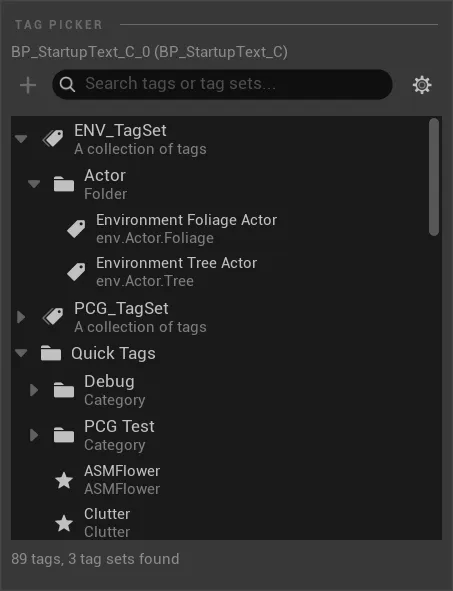
The Tag Picker is the shared search and selection UI for adding tags. It is used by the Tag Inspector, context menus, the Assignments Panel, and Pro workflows.
When to Use It
Section titled “When to Use It”| Situation | Use the picker to |
|---|---|
| Add a known tag | Search existing Quick Tags and TagSet Tags. |
| Add a temporary tag | Enter an undefined tag when the workflow allows it. |
| Keep scope correct | Pick tags whose definition matches the target type. |
| Replace a tag | Select the new tag from a replacement workflow. |
What You See
Section titled “What You See”| UI area | Purpose |
|---|---|
| Target line | Shows the Actor, Component, Asset, or workflow context that opened the picker. |
| Search field | Filters tags, folders, TagSets, and Quick Tags by visible text. |
| Settings button | Opens picker display options such as folder and label modes. |
| TagSet tree | Shows Pro TagSet sources, folders, and available TagSet Tags. |
| Quick Tags | Shows configured Lite / Pro Quick Tags grouped by category. |
| Footer | Shows how many tags and tag sets are currently available. |
The visible entries depend on the workflow that opened the picker. Actor and Component workflows should show Actor-capable or Component-capable tags. Pro workflows can also show TagSet tags, inherited folder structure, display names, and Asset-capable tags where appropriate.
Scope Awareness
Section titled “Scope Awareness”The picker should show tags that are meaningful for the current target. Actor workflows should prefer Actor-capable tags, Component workflows should prefer Component-capable tags, and Pro asset workflows should prefer Asset-capable TagSet Tags.
Basic Workflow
Section titled “Basic Workflow”Pick a tag
- Open the picker from the Tag Inspector, context menu, or Assignments Panel.
- Search by tag name, display name, or visible path.
- Select an existing tag, or enter an undefined tag if the workflow allows it.
- Confirm the selection.
- Verify the result in the Tag Inspector or Assignments Panel.
Extensions Pro
Section titled “Extensions ”ProWhen Pro is active, the picker can include TagSet Tags and Asset-scope tags. The visible tag data can include display names, full tags, tooltips, scopes, and TagSet organization.