
Import and Export
Import and export lets you move tag definitions between J2 Tags, Unreal assets, and external files.
What to Use It For
Section titled “What to Use It For”- Carry a TagSet definition between projects.
- Move a reviewed tag list into a clean TagSet.
- Export a clean snapshot before big merges or renames.
- Convert lists from CSV, JSON, Gameplay Tags, or Data Tables into TagSet definitions.
- Export current tags for external review or pipeline tooling.
Open the Workflow
Section titled “Open the Workflow”Import and export are available from the Tag Manager toolbar and from supported TagSet context actions.
Window | J2 Tags | Manager
Use Import for incoming data and TagSet context/export actions for outgoing data.
Supported Directions
Section titled “Supported Directions”| Format | Import From | Export To |
|---|---|---|
| Tag Set | Yes | Yes |
| Quick Tags | No | Yes |
| Data Table | Yes | Yes |
Gameplay Tags (.ini) | Yes | Yes |
| CSV | Yes | Yes |
| JSON | Yes | Yes |
JSON, CSV, and Gameplay Tags use files. Data Table export creates or replaces a Data Table asset. Quick Tags can be exported into another format, but they are not an import source.
Transfer Modes
Section titled “Transfer Modes”The transfer has two modes.
Simple
Section titled “Simple”- Transfers only tag names.
- For JSON, this is a list-only format.
- For CSV and Data Table, this writes only the tag column.
- Useful for bootstrap lists and quick audits.
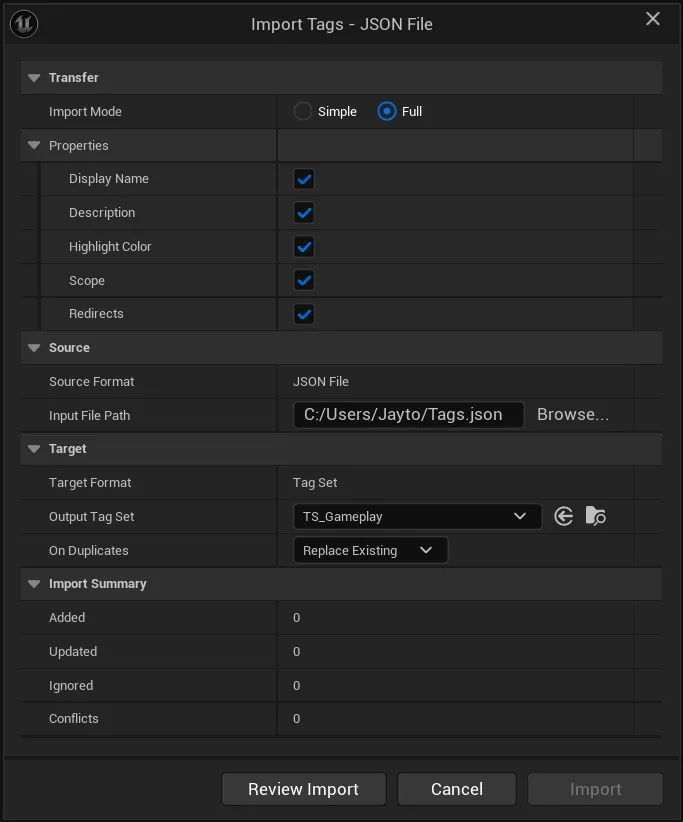
Full mode can preserve metadata when available. The Properties group controls which fields are included.
| Full option | Transfers |
|---|---|
| Display Name | Human-readable tag label. |
| Description | Tag tooltip/description. |
| Highlight Color | Tag highlight color. |
| Scope | Actor, Component, Asset, or combined scope. |
| Redirects | Old tag names that redirect to the current tag. |
Fields disabled in Full Options are not written or applied. Missing metadata fields are left unchanged unless duplicate handling replaces an existing tag with provided data.
Duplicate Handling
Section titled “Duplicate Handling”When importing into a destination that can already contain tags, choose how matching tags are handled.
| Option | Behavior |
|---|---|
| Replace Existing | Overwrites matching tags and enabled metadata fields. |
| Keep Existing | Keeps current tags and skips matching incoming tags. |
This is most useful for Full TagSet imports because tag metadata can be updated only when a matching tag is imported.
Preview and Review
Section titled “Preview and Review”Before applying an import, review the generated preview and the selected source/target formats.
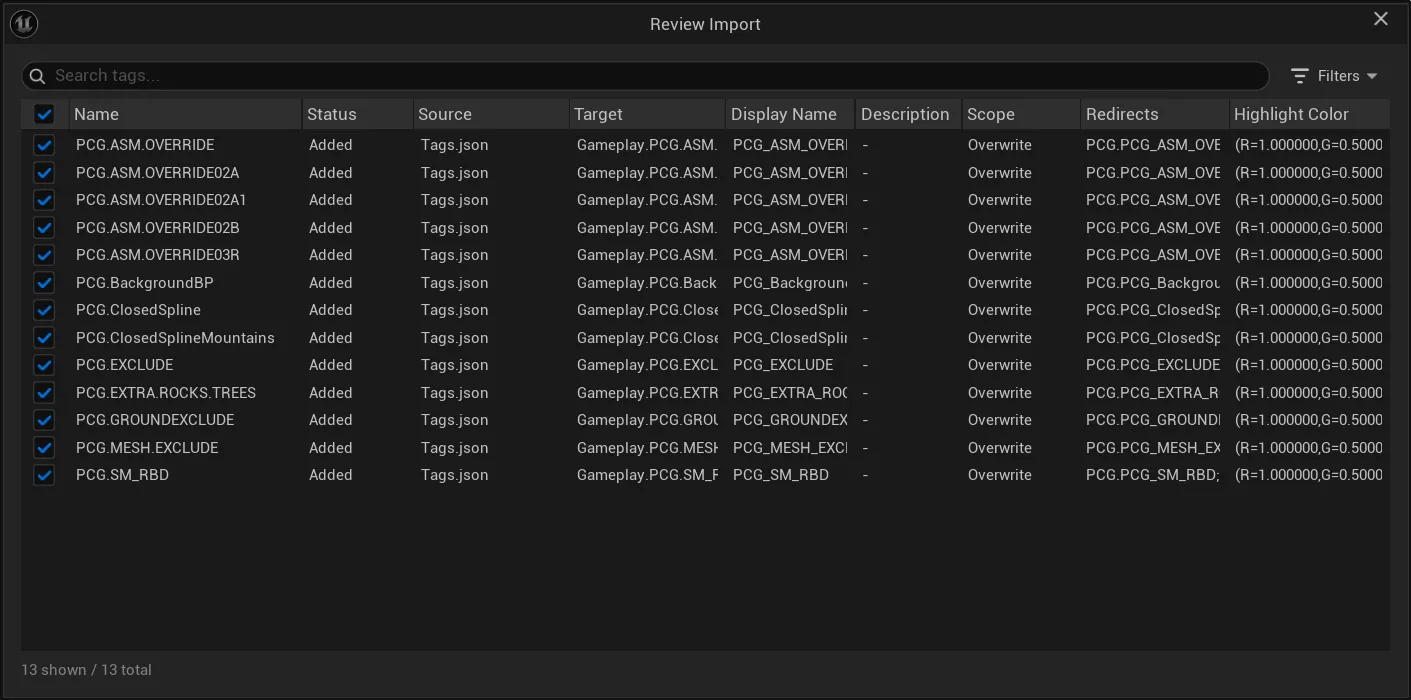
Check these items before confirming:
- source and target format
- target TagSet
- transfer mode
- Full Options
- duplicate policy
- previewed tag names and metadata
JSON Layout
Section titled “JSON Layout”JSON always uses a root object with a tags array. Simple mode uses strings. Full mode uses tag objects.
{ "tags": [ "Gameplay.Character.Movement.Walk", "Gameplay.Character.Movement.Run", "Gameplay.Character.Action.Jump" ]}Simple JSON imports and exports only tag names.
{ "tags": [ { "name": "Gameplay.Character.Movement.Walk", "displayName": "Walk", "description": "Walking movement", "highlightColor": { "r": 0.24, "g": 0.58, "b": 0.98, "a": 1.0 }, "scope": "ActorAndAsset", "redirects": [ "Gameplay.Legacy.Movement.Walk", "Gameplay.Old.Walk" ] }, { "name": "Gameplay.Character.Action.Jump", "displayName": "Jump", "description": "Jump action", "highlightColor": "#FFAA33FF", "scope": "All", "redirects": [] } ]}Full JSON exports only the enabled Full Options fields.
JSON Fields
Section titled “JSON Fields”| Field | Mode | Type | Notes |
|---|---|---|---|
tags | Simple, Full | Array | Required root array. |
tags[] | Simple | String | Tag name. For TagSet import this may be converted to a local name depending on the target. |
tags[].name | Full | String | Required for each tag object. |
tags[].displayName | Full | String | Optional display name. |
tags[].description | Full | String | Optional description. tooltip is also accepted on import. |
tags[].highlightColor | Full | Object or string | Object uses r, g, b, a values from 0..1. Hex strings are accepted on import. |
tags[].scope | Full | String or number | Supports Overwrite, Inherited, ActorOnly, ComponentOnly, AssetOnly, Universal, ActorAndAsset, ComponentAndAsset, All, or numeric values 0..7. |
tags[].redirects | Full | String array | Previous tag names that should redirect to this tag. |
JSON Compatibility Notes
Section titled “JSON Compatibility Notes”descriptionandtooltipare both accepted on import.highlightColorcan be either an object withr,g,b,aor a hex string.- Imports can accept older
tagPrefix,tagSet.prefix,tagSet.tagPrefix, andgroupsfields for compatibility. - New JSON exports write the
tagsarray and enabled tag metadata fields; they do not write a full TagSet asset file.
CSV Layout
Section titled “CSV Layout”CSV uses a normal comma-separated table. Use quotes when a field contains commas, quotes, or line breaks.
TagNameGameplay.Character.Movement.WalkGameplay.Character.Movement.RunGameplay.Character.Action.JumpSimple CSV has one column. The first column can be named TagName, Tag, or Name; plain rows without a header are also accepted for simple imports.
TagName,DisplayName,Description,Scope,Redirects,HighlightColorGameplay.Character.Movement.Walk,Walk,Walking movement,ActorAndAsset,Gameplay.Legacy.Movement.Walk;Gameplay.Old.Walk,"R=0.240000,G=0.580000,B=0.980000,A=1.000000"Gameplay.Character.Action.Jump,Jump,Jump action,All,Gameplay.Legacy.Jump,"R=1.000000,G=0.666667,B=0.200000,A=1.000000"Full CSV imports metadata only when the file has a header row.
CSV Columns
Section titled “CSV Columns”| Column | Mode | Notes |
|---|---|---|
TagName | Simple, Full | Required tag column. Tag and Name are accepted aliases on import. |
DisplayName | Full | Optional display name. |
Description | Full | Optional description. |
Scope | Full | Same values as JSON scope. |
Redirects | Full | Previous tag names, separated by ;, ` |
HighlightColor | Full | Unreal FLinearColor string, for example R=0.240000,G=0.580000,B=0.980000,A=1.000000. |
Data Table Layout
Section titled “Data Table Layout”Data Table is a native Unreal asset format, not a text file. Export creates a Data Table that uses the FJ2TagTransferTableRow row struct.
On import, the selected tag field is a column/property. Each Data Table row becomes one imported tag by reading that selected column.
| Row Name | TagName |
|---|---|
Gameplay.Character.Movement.Walk | Gameplay.Character.Movement.Walk |
Gameplay.Character.Movement.Run | Gameplay.Character.Movement.Run |
Gameplay.Character.Action.Jump | Gameplay.Character.Action.Jump |
Simple Data Table import is the most compatible mode. Pick a Name or String column, such as TagName, Tag, or Name, and J2 Tags reads one tag from each row.
| Row Name | TagName | DisplayName | Description | Scope | Redirects | HighlightColor |
|---|---|---|---|---|---|---|
Gameplay.Character.Movement.Walk | Gameplay.Character.Movement.Walk | Walk | Walking movement | ActorAndAsset | Gameplay.Legacy.Movement.Walk;Gameplay.Old.Walk | R=0.240000,G=0.580000,B=0.980000,A=1.000000 |
Gameplay.Character.Action.Jump | Gameplay.Character.Action.Jump | Jump | Jump action | All | Gameplay.Legacy.Jump | R=1.000000,G=0.666667,B=0.200000,A=1.000000 |
Full Data Table import reads the selected tag column and then uses the enabled Full Options to read metadata from the same row.
Data Table Fields
Section titled “Data Table Fields”| Field | Unreal type | Mode | Notes |
|---|---|---|---|
TagName | FName | Simple, Full | Required in exported tables. Import also accepts Tag or Name as the selected tag column if the column is Name or String. |
DisplayName | FText | Full | Optional display name. |
Description | FText | Full | Optional description. |
Scope | FString | Full | Same values as JSON scope. |
Redirects | FString | Full | Previous tag names, separated by ;, ` |
HighlightColor | FLinearColor | Full | Exported as a native color field. Import also accepts a string field containing an Unreal FLinearColor value. |
The default Full field names are restored each time the import dialog is opened. Custom field names are applied only to the current import.
Gameplay Tags Format
Section titled “Gameplay Tags Format”Gameplay Tags import and export uses the Unreal .ini list format.
[/Script/GameplayTags.GameplayTagsList]GameplayTagList=(Tag="Character.Movement.Walk")GameplayTagList=(Tag="Character.Action.Jump")Recommended Import Flow
Section titled “Recommended Import Flow”Import tags safely
- Export the current TagSet in Full JSON before a risky change.
- Import incoming data into a controlled target TagSet.
- Use Full mode only when metadata should be transferred.
- Review the preview before applying.
- Run Diagnostics after import.
Common Checks Before Import
Section titled “Common Checks Before Import”- Pick the correct source and target format pair.
- Use Full mode for metadata, Simple for name-only lists.
- Confirm duplicate policy.
- Check whether scopes are valid for the target TagSet.
- Preview changes before applying them.