
Tag Manager
The Tag Manager is the main Pro panel for maintaining TagSet definitions. It is where you create the tag structure, edit metadata, review health data, and connect behaviors.
Open it from:
Window | J2 Tags | Manager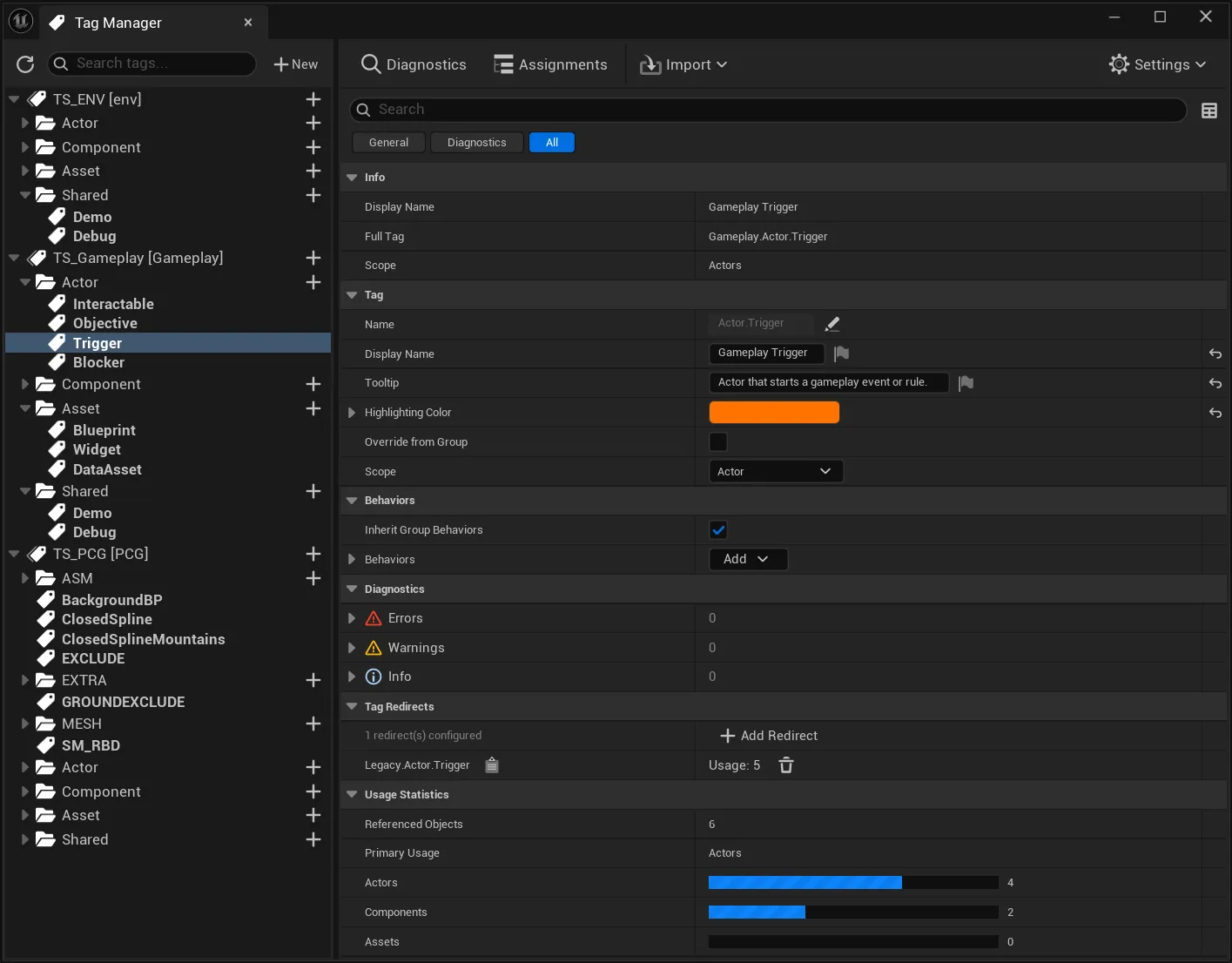
Panel Layout
Section titled “Panel Layout”The panel is built around two main areas.
The left side is the TagSet tree. It shows TagSets, groups, and tags in their actual hierarchy. Use it to select what you want to edit, search for a tag, create new TagSets, add groups or tags, and run context actions.
The right side is the details area. It changes depending on the selected tree item. Selecting a TagSet shows TagSet-wide settings, selecting a group shows group settings, and selecting a tag shows the concrete tag definition.
Toolbar
Section titled “Toolbar”| Action | Purpose |
|---|---|
| New | Creates a new TagSet asset and asks for the prefix. |
| Diagnostics | Opens the Diagnostics panel. |
| Assignments | Opens the Assignments Panel. |
| Import | Starts an import workflow from TagSet, Data Table, Gameplay Tags, CSV, or JSON. |
| Settings | Opens J2 Tags settings. |
Tree Items
Section titled “Tree Items”| Item | Meaning |
|---|---|
| TagSet | A J2 Tag Set Data Asset. The tree label shows the asset and its effective prefix. |
| Group | A structural local path such as Actor, Asset, or Interaction. Groups can inherit or override settings. |
| Tag | A concrete tag definition. The full tag is built from the TagSet prefix plus the local tag name. |
TagSet Details
Section titled “TagSet Details”A TagSet defines the shared context for all tags inside it.
| Field | Purpose |
|---|---|
| Display Name | Human-readable label for the TagSet. |
| Tag Prefix | Shared prefix used to build full tags. |
| Description | Explanation for users and tooltips. |
| Scope | Default scope for tags unless a group or tag overrides it. |
| Behaviors | Behavior libraries or sections that apply at TagSet level. |
| Groups | Structural groups with optional inherited settings. |
| Tags | Concrete tag definitions. |
For example, a prefix Gameplay and local tag Interaction.Door produce the full tag Gameplay.Interaction.Door.
Group Details
Section titled “Group Details”Groups organize local tag paths such as Interaction, Interaction.Door, or AI.State. They are more than visual folders: a group can carry its own display name, scope override, behavior mappings, and behavior input overrides.
Use groups when a branch of tags shares the same meaning or validation rules. For example, all tags under Asset.Category may allow Asset usage, while tags under Runtime.State may be Actor-only.
Tag Details
Section titled “Tag Details”A tag is the concrete definition users pick and apply.
| Field | Purpose |
|---|---|
| Name | Local tag name without the TagSet prefix. |
| Display Name | UI label in pickers, inspectors, overlays, and review tools. |
| Tooltip | Explanation shown to users. |
| Highlighting Color | Color used by Pro-aware UI and the Viewport Overlay. |
| Scope | Optional override for this specific tag. |
| Redirects | Old full tag names that should resolve to this tag. |
| Behaviors | Behavior libraries or behavior sections assigned to this tag. |
Diagnostics in the Details Area
Section titled “Diagnostics in the Details Area”The details area surfaces health data for the selected item. It can show summary counts, warnings, usage statistics, and redirect information.
For a TagSet, this helps answer whether the whole definition set has issues. For a group, it helps check the branch. For a tag, it shows whether the tag is used, whether its usage fits the effective scope, and whether redirects or definitions need attention.
Practical Workflow
Section titled “Practical Workflow”- Create or select a TagSet.
- Set prefix, description, and default scope.
- Add groups for meaningful branches.
- Add tags with clear local names.
- Fill display names, tooltips, scopes, colors, redirects, and behaviors where needed.
- Check diagnostics data in the details area.
- Open Diagnostics for deeper project-wide validation.