
Context Menus
J2 Tags adds tag actions to regular Unreal context menus. This is the fastest way to edit tags while staying in the level, Blueprint editor, or Content Browser.
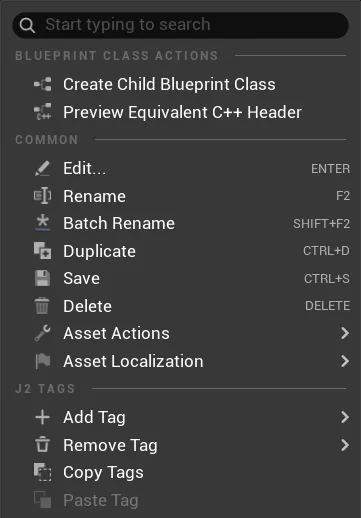
The J2 Tags section contains the actions that operate on the current selection. Disabled actions, such as Paste Tag, become available when the required source data exists.
Available Actions Lite
Section titled “Available Actions ”LiteLite context menus work on selected Actors and Components. The same action can usually be applied to one item or to a multi-selection.
| Action | Purpose |
|---|---|
| Add Tag | Opens the Tag Picker and adds the chosen tag to the selected Actor or Component target. |
| Remove Tag | Shows tags currently present on the selection and can remove one tag or all tags. |
| Copy Tags | Reads the current Actor or Component tags from the selection and stores them in the J2 Tags clipboard. |
| Paste Tag | Applies the copied tags to another Actor or Component selection. |
Typical Flow Lite
Section titled “Typical Flow ”LiteEdit tags from a context menu
- Select one or more Actors or Components.
- Open the context menu.
- Use Add Tag, Remove Tag, Copy Tags, or Paste Tag.
- Check the result in the Tag Inspector, Assignments Panel, World Outliner, or Viewport Overlay.
Extensions Pro
Section titled “Extensions ”ProPro keeps the Lite actions and adds production actions where the current context supports them.
| Context | Pro actions |
|---|---|
| TagSet Tag | Open in Tag Manager, execute assigned behavior when available. |
| Undefined tag in Assignments | Add to TagSet or add selected tags to a TagSet. |
| Content Browser assets | Add, remove, copy, and paste Asset Tags. |
| Content Browser assets | Show selected asset tag data in Diagnostics. |
| Components | Open related tag in the Tag Manager when a definition exists. |
Asset Tags require TagSet tags whose effective scope allows Assets. Quick Tags cannot be Asset Tags.
Assignments Panel context menus are more specific. Tag rows expose tag operations such as replacing references, while object rows expose selection and removal actions for the selected reference.
When Context Menus Are the Right Tool
Section titled “When Context Menus Are the Right Tool”Use context menus when the selection is already correct and you want a fast change. Use the Assignments Panel when you need to review many tagged objects, replace a tag across a level, or compare usage. Use the Tag Manager when you need to change the definition itself.