
Diagnostics
Pro Diagnostics
The Diagnostics Panel collects tag issues, usage data, redirect information, and custom issues generated by the Behavior System.
Open It
Section titled “Open It”Window | J2 Tags | Diagnostics
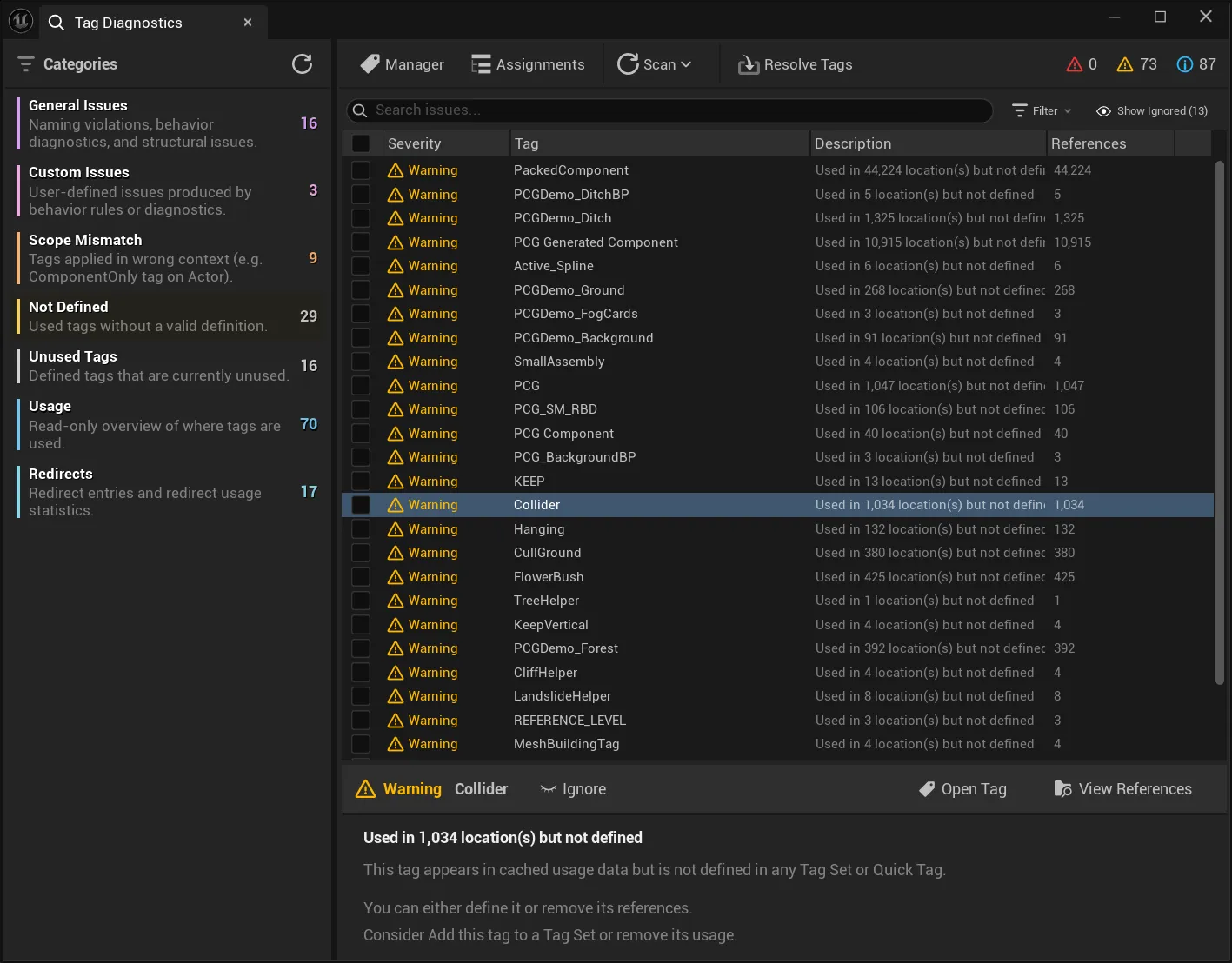
Questions Diagnostics Answers
Section titled “Questions Diagnostics Answers”| Question | Category |
|---|---|
| Which used tags are not defined? | Not Defined |
| Which defined tags have no references? | Unused Tags |
| Where are old redirect names still used? | Redirects |
| Is a tag used on the wrong target type? | Scope Mismatch |
| Where is each tag referenced? | Usage |
| What custom problems did behaviors report? | Custom Issues |
| Are there structural problems in TagSets or behaviors? | General Issues |
Categories
Section titled “Categories”| Category | Meaning |
|---|---|
| General Issues | Naming, behavior diagnostics, and structural issues that do not fit a more specific category. |
| Custom Issues | User-defined issues produced by behavior rules or diagnostics. |
| Scope Mismatch | Tag is used on Actor, Component, or Asset while its scope does not allow that target. |
| Not Defined | Usage without a Quick Tag or TagSet definition. |
| Unused Tags | Defined tags without found references. |
| Usage | Read-only overview of where tags are used. |
| Redirects | Redirect entries and redirect usage statistics. |
Scan Actions
Section titled “Scan Actions”The Scan menu can update the usage cache before diagnostics are refreshed.
| Action | Use when |
|---|---|
| Scan Current Level | You only need fresh data for the currently loaded level. |
| Scan Full Project | You need project-wide data, including level objects and Asset Tags. |
| Restrict Usage To Current Level | You want usage diagnostics to show only references from the loaded editor level. |
| Refresh | You want to rebuild the panel from current cache data without starting a new scan. |
Result Actions
Section titled “Result Actions”| Action | Purpose |
|---|---|
| Ignore / Show Ignored | Hide accepted issues and bring them back when needed. |
| Open Tag | Opens the tag in the Tag Manager when it has a definition. |
| View References | Opens the references for the selected usage or issue. |
| Resolve Tags | Converts not-defined issue tags into Quick Tags or TagSet Tags. |
| Cleanup Redirects | Removes unused redirects or prepares redirect cleanup. |
| Cleanup Issues | Clears behavior-generated custom issues when appropriate. |
Basic Workflow
Section titled “Basic Workflow”Review diagnostics safely
- Make sure the Usage Database and tracking settings are configured.
- Run Scan Current Level or Scan Full Project.
- Review Not Defined, Scope Mismatch, and Redirects first.
- Select a message to inspect details and suggested action.
- Open references before applying cleanup.
- Run cleanup or migration actions only after confirming the intended source of truth.
Cleanup Safety
Section titled “Cleanup Safety”Cleanup actions can change many assets or level objects. Before large cleanups, decide which source is authoritative: Quick Tags, TagSets, or intentionally accepted local tags.